How to Make the Viral AI Car Flying Stunt Video: 4 Simple Steps
Want to recreate the viral car flying stunt video with your own photo? Here’s the simple AI workflow, from choosing the reference clip to generating the final video.
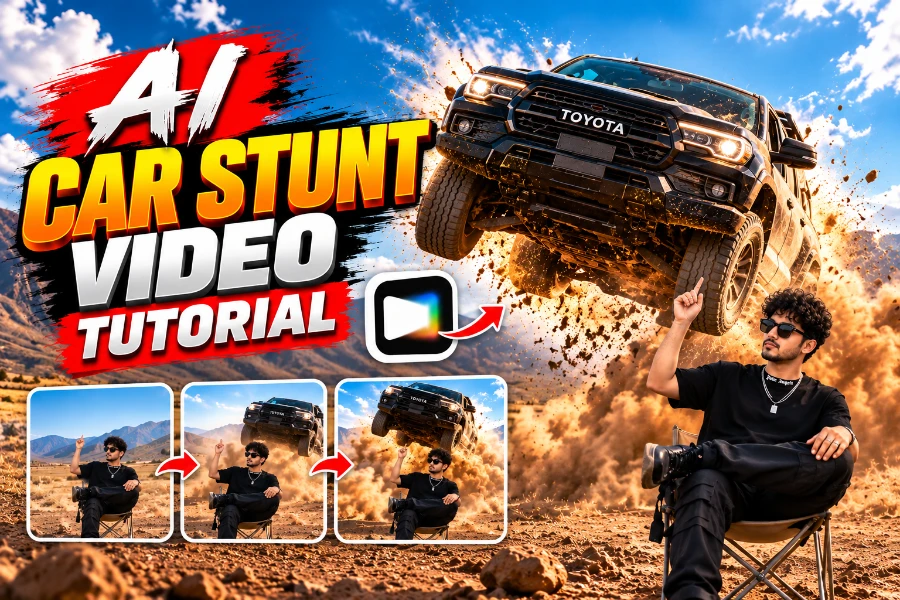
Introduction
You may have seen those cinematic car stunt videos where a person sits calmly while a huge vehicle suddenly jumps or flies through the scene.
The good news is that you don’t need to shoot the stunt yourself.
With AI video tools, you can use a reference video for the action and camera movement and your own photo for the person. The AI then creates a new version of the scene based on your instructions.
In this tutorial, we’ll use a simple 4-step workflow with Google Flow as the free option and Higgsfield as the paid alternative.
What You’ll Need
A short car flying/stunt reference video
A clear photo of yourself
Google Flow or Higgsfield
The prompt provided below
Step 1: Choose the Reference Video
First, find the car stunt video you want to recreate.
A short clip with a clear subject, simple background, and visible car movement usually works better. Around 8–12 seconds is enough for this type of edit.
The important part is the video itself: it gives the AI the camera angle, movement, timing, environment, and stunt action to follow.
Tip: Use someone else’s video as a creative reference rather than reposting their footage unchanged.
Reference Video : [ Download ]
Step 2: Prepare Your Photo
Now choose a clear photo of the person you want to place into the scene.
For better results, use a sharp image where your face is clearly visible. Avoid heavily filtered, blurry, or extremely angled photos.
Your photo is mainly used as the identity reference, while the reference video controls the scene and action.
Step 3: Upload Both References
Open your chosen AI video tool.
Free option: Google Flow
Google Flow currently supports reference-based video creation and video editing features, including video-to-video editing and Ingredients to Video. Its current official page also lists a free no-subscription tier with daily credits, although availability can vary by region and plan.
Paid option: Higgsfield
For a more advanced workflow, Higgsfield supports editing existing videos, reference videos, image references, and multiple AI video models in one workspace.
Upload:
Your car stunt reference video
Your personal reference image
Then use the prompt below.
Step 4: Paste the Prompt and Generate
This is the most important part.
Tell the AI exactly what should stay the same and what should change.
Use this prompt:
Use the uploaded reference video as the exact reference for the scene, camera movement, timing, composition, environment, and car stunt action. Use the uploaded reference image as the only identity reference for the human subject. Replace the original person with the person from the uploaded image while keeping their facial identity, natural appearance, hair, skin tone, and proportions consistent throughout the video.
Recreate the same cinematic car stunt sequence shown in the reference video. Keep the same wide composition, camera movement, timing, dry outdoor environment, warm golden-hour lighting, and realistic dust. The person remains seated casually on a small folding chair in the foreground while a large dark pickup truck performs the same dramatic jump/drive-by action behind them. The person should react naturally and subtly while following the same timing and body movement as the reference video.
Keep the vehicle realistic with natural reflections, shadows, dust interaction, and motion blur. Maintain realistic human skin, hair, clothing, lighting, depth of field, and cinematic camera movement.
Do not change the environment or stunt sequence. Do not copy the original person's identity. Avoid face distortion, identity drift, extra limbs, deformed hands, duplicate people, plastic skin, CGI appearance, cartoon graphics, or excessive camera shake.
Make the final result look like a real professionally filmed version of the same scene with the uploaded person replacing the original person. Use a vertical 9:16 composition suitable for Instagram Reels and YouTube Shorts.
Now click Generate.
The AI should create a new version of the scene while using the reference video for the stunt and your photo for the person.
Common Mistakes and Fixes
The face looks different
Use a sharper, better-lit reference image. A low-quality image gives the model less information about your actual appearance.
The car movement changes
Your prompt needs to clearly say “follow the reference video's exact action, timing, and camera movement.”
The video looks too artificial
Avoid asking for too many changes at once. Keep the original environment, lighting, and composition and only change the person.
Generation keeps failing
Try a shorter reference clip and remove unnecessary audio from the source video. If the tool still struggles, simplify the prompt and generate again.
The output is not vertical
Set the final video to 9:16 so it is ready for Reels and Shorts.
FAQ
Do I need advanced editing skills?
No. You only need to know how to upload a reference image, upload a video, enter a prompt, and generate the result.
Can I use Google Flow for this?
Yes. Google Flow supports reference-based generation and video editing workflows, including video-to-video editing.
Is Higgsfield better for this type of video?
Higgsfield offers a more advanced video-generation workspace with reference-video editing and access to multiple video models. The actual result can still vary depending on the model, references, and prompt.
What kind of photo should I use?
Use a clear, high-resolution photo with your face visible and as few distractions as possible.
Can I post the generated video on Instagram?
Yes, but use the reference clip as inspiration rather than uploading someone else's original video as your own. Also check the AI tool's current terms and the rights associated with any source material you use.
Explore More AI Prompts
Want to experiment with more viral AI edits?
You can explore Visulora's prompt gallery for more ready-to-use AI image prompts, creative references, and other trending generation ideas. Generate a suitable image there and use it as the starting reference for your next video experiment.
The basic workflow is simple:
Reference Video → Your Photo → AI Prompt → Generate
That’s all you need to recreate the viral car flying stunt style without filming the stunt yourself.