How to Make the Viral AI Car Swap Video: 4 Simple Steps (Free & Paid Tools)
The trending AI car swap edit isn't complicated once you know the workflow — here's exactly how it's done, tool by tool.
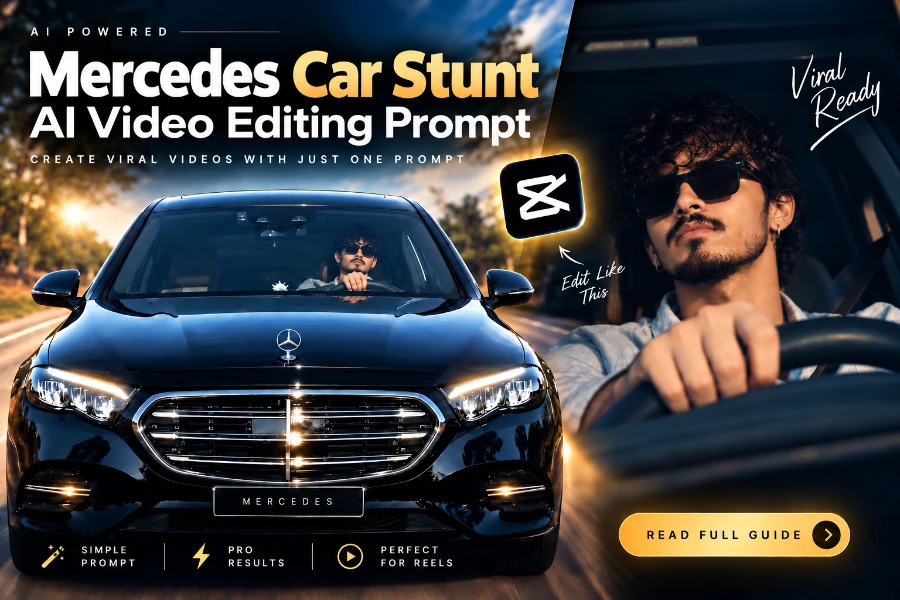
Introduction
If your Instagram feed is full of people swapping cars in videos using AI, you've probably wondered how it's done. It's simpler than it looks — no editing skills required, just the right reference footage and the right prompt. Here's the exact 4-step workflow, including the free option and the paid option that gets noticeably better results.
What You'll Need
A reference video (the trend clip you want to recreate)
A clear, front-facing reference image
An AI video generation tool
One well-written prompt
Step 1: Get Your Reference Video
Save the trending video you want to base your version on — usually from Instagram Reels. This is your "template": the camera movement, pacing, and framing the AI will follow.
Step 2: Choose Your Tool
Free-ish option: Gemini or Google Flow. I personally used Google Flow for my own version, and it handled the reference-to-video swap well. Note: Flow itself isn't free — it's part of Google's AI Pro/Ultra subscription, though Gemini has some limited free video features.
Paid, higher-quality option: Higgsfield. If you want sharper, more consistent output and don't mind paying, this is the upgrade.
Step 3: Upload Your Reference Image and Video
Open your chosen tool and upload:
Your reference image (the car, product, or subject you want swapped in)
The reference video from Step 1
Step 4: Write Your Replacement Prompt
This is the step people skip explaining — and it's the one that actually matters. Structure your prompt like this:
Replace the driver in the reference video with the person from my uploaded reference image. The uploaded person should naturally occupy exactly the same position and posture as the original driver.
Keep everything else exactly unchanged: the same car, interior, steering wheel, road, location, background, lighting, camera angle, camera movement, driving motion, timing, reflections, shadows, and overall visual style.
The new person must realistically interact with the steering wheel and controls, with natural hand placement, body movement, head movement, facial expressions, and driving posture matching the original driver's movements frame by frame. Preserve the original person's actions and timing, but transfer those movements naturally to the replacement person.
Do not change the car or environment. Do not add or remove any objects. Maintain realistic skin texture, facial identity, clothing, proportions, perspective, reflections, and natural motion.
The result should look like the uploaded person was actually sitting inside the car and driving during the original recording. Photorealistic, seamless face and body replacement, consistent identity throughout the entire video, no flickering, no morphing, no distortion.
Be specific about what should carry over (angle, motion, background) and what should change (only the subject). Vague prompts produce vague results.
Hit generate, and you'll get your own version of the trend.
Common Mistakes (and Fixes)
Blurry reference image → Use a clear, front-facing photo. Distorted or angled images confuse the model and produce warped results.
Generation errors → Mute the reference video and try again. Audio data sometimes trips up the processing pipeline.
Overwriting too much → If your prompt is too aggressive, you'll lose the original video's camera movement. Anchor the prompt to "keep the same motion" explicitly.
FAQ
Do I need a paid tool to do this? No — Gemini/Google Flow can produce a usable result, though Higgfield generally gives cleaner, more consistent output.
Why does my generation keep failing? Usually a low-quality reference image or audio conflict in the reference video. Mute the video and use a sharper image first.
Can I use any video as a reference? Yes, but stick to it as creative inspiration rather than reposting it directly.
Try It With AI-Generated References
If you don't have a strong reference image to start with, [Visulora's prompt gallery] has ready-to-use AI image prompts you can generate and drop straight into this workflow — no need to hunt for the "perfect" photo first.