How to Make the Viral Diwali Dupatta AI Video: 4 Easy Steps
Make the viral Diwali dupatta AI video from my 6.6M-view reel: the exact prompt, Google Flow settings, free credit limits and easy fixes for common problems.
Last updated 6 November 2026. AI tools change quickly, so I'll update this guide whenever the steps or credit costs change.
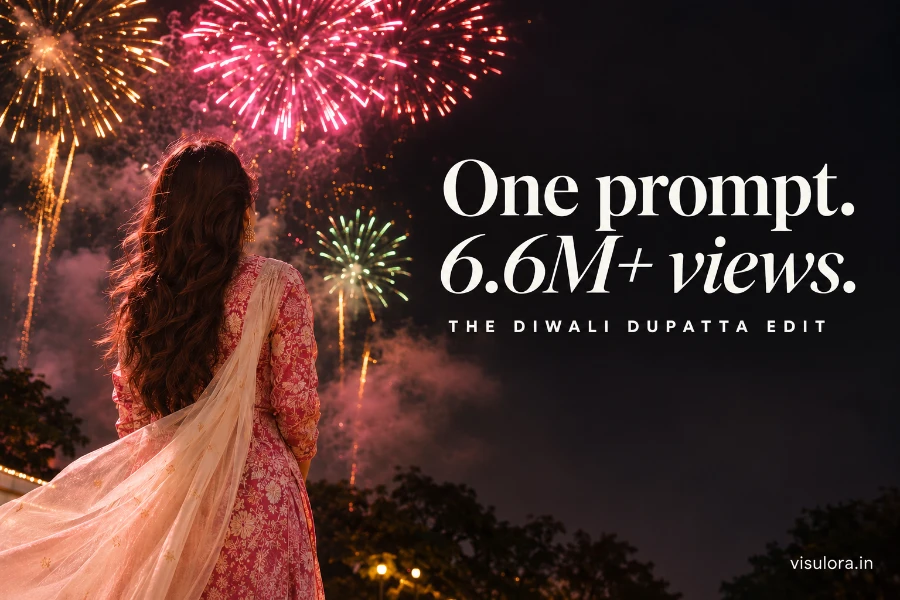
My Diwali dupatta reel has crossed 6.6 million views, and many of you have asked how it's made. The good news: you don't need editing skills, and you can do the whole thing on your phone.
Here's the short answer. To make the viral Diwali dupatta AI video, upload a short dupatta-spin fireworks clip and your reference image to Google Flow, choose 9:16, and ask it to replace the woman without changing the scene. The clip supplies the spin, the camera and the fireworks. Your image supplies the person and the outfit.
The reference clip on the left and my result on the right. The fireworks and camera stayed the same, while the person and outfit changed.
What you need for this Diwali AI video
A short reference clip. This is a dupatta spin that sweeps into fireworks, ideally 10 seconds or less.
A clear reference image of the person you want in the video.
Google Flow. I used the phone app in my reel.
The prompt in Step 4.
Want the clip I used? You can download it from my WhatsApp channel or my Telegram group. The original video belongs to another creator, so use it only as a reference for your own edit.
Step 1: Choose your dupatta reference clip
The reference clip does most of the work, so choose it carefully. It controls the camera angle, timing, background and fireworks.
The magic of this trend is the transition. The clip starts at dusk, the dupatta sweeps across the frame, and the sky then fills with fireworks.
The dupatta sweep is what makes the jump into the fireworks feel natural.
Look for these three things:
The whole person stays in frame.
The dupatta moves clearly and fills a large part of the screen.
There are no other people close to the subject.
In Flow, trim the clip to the best part before you continue.
Trimming the reference clip before using it.
Tip: whichever clip you choose, use it as a reference only. Don't repost another creator's footage unchanged, and give credit when you've been inspired by someone's idea.
Step 2: Prepare your reference image
This is the step most people miss. I didn't upload a plain selfie. I used one image with four views of the same person: a full-body shot, a close-up, and two side angles.
The reference sheet of my AI avatar, with the video starting to generate beside it.
A sheet like this shows the AI the face from more than one side, which matters because the person turns during the spin. It also sets the outfit. In my reel, the original clip had a green kurta, but the result used the pink kurta and white dupatta from my reference image. So choose your Diwali outfit in this image, not in the prompt.
You can make a sheet from one clear photo in ChatGPT. Upload your photo and paste this:
Using my uploaded photo as the identity reference, create one clean reference sheet on a plain pastel background. Keep my exact face, hairstyle, skin tone and age. Show four panels of the same person in the same outfit: a tall full-body standing shot on the left, a close-up portrait at the top right, and two side-angle head and shoulders shots at the bottom right. Outfit: a pink printed festive kurta with white palazzo pants and a long sheer ivory dupatta. For a man, use a pink printed kurta with white pajama and an ivory stole. Soft, even studio light. Photorealistic. No text, no watermark, no logos, no extra people, no distorted hands or faces.
Step 3: Upload both files in Google Flow
Open Google Flow and start a project. Add your trimmed clip, then upload your reference image. Both should appear above the box that says "What do you want to change?"
These are the settings from my reel:
Type: Video
Ratio: 9:16, for Reels and Shorts
Quality: 720p
Number of results: x1
Model: Omni 1.1 Flash
The settings panel in Flow.
Google says Omni Flash 1.1 will be retired on 5 December 2026. If you don't see it, choose Omni Flash 1.2.
Step 4: Paste the prompt and generate
Here's the prompt I used in the reel, with the spelling fixed:
replace the woman with this reference image, don't change the scene
Yes, it really is this short.
It can be short because the two uploads already hold the details. The prompt only has to say what changes and what stays the same.
If the face or background drifts, try this longer version:
Replace the woman in the uploaded video with the person from the uploaded reference image. Use the reference image for the face, hair, skin tone and outfit, and keep them consistent in every frame. Keep everything else from the video unchanged: the camera angle, camera movement, timing, spin, dupatta movement, background, fireworks, smoke and lighting. Do not add or remove anything. Natural skin, realistic fabric and natural motion, with no flickering, face changes or distorted hands.
Tap the arrow, wait for it to finish, then download your video. Add your festive audio when you post it to Reels.
No reference clip? Try this backup prompt
You can also ask Flow to create the whole scene from your image. This isn't the method I used in my reel, and results will vary more, but it's a good option if you can't find a clip. Upload your reference image and paste this:
9:16 vertical, 10 seconds, photorealistic. Use the uploaded image as the only reference for the person's face, hair, skin tone and outfit. Low camera angle at dusk, outdoors, under a deep blue sky. The person stands with their back to the camera and begins a slow, graceful spin. A long sheer dupatta flares out and sweeps across the whole frame. As it clears, the sky is dark and full of huge pink, gold and green Diwali fireworks with soft drifting smoke. The person looks up in wonder as the colours light their face and clothes. Smooth motion, realistic fabric and natural proportions. No text, no watermark, no extra people, no face changes, no distorted hands.
Is Google Flow free? Credits and timing
Yes, Flow has a free option, but it's limited. This is what Google's credits page says as of 6 November 2026:
Free daily credits: you get 50 Flow credits a day, and unused credits don't carry over.
Omni Flash 1.2: videos up to 10 seconds are open to all users. It costs 3 credits per second at 720p, so a full 10-second video uses about 30 credits.
Omni Flash 1.1: editing costs 40 credits each time.
Longer clips: 15-second videos on Omni Flash 1.2 need a paid plan.
My screen showed 20 AI credits for this edit, so always check the number shown just above the settings before you generate.
Important for India: free users may not be able to generate videos during peak hours, roughly 2 PM to 5 PM UTC. That's about 7:30 PM to 10:30 PM in India, so try earlier in the day if generating is unavailable.
Common problems and fixes
The face doesn't look right: use a sharper reference image with more angles, and use the longer prompt.
The scene changes: add "don't change the scene" again, or use the longer prompt, which lists what must stay the same.
The outfit looks wrong: change the outfit in your reference image, not in the prompt.
The dupatta looks stiff: pick a reference clip with a bigger, clearer sweep.
Generation fails: mute the reference clip and try again. Audio can cause errors in similar edits.
You ran out of credits: wait for the next day's free credits, or use a paid plan.
FAQ
Which app is used for the viral Diwali dupatta video?
I used Google Flow on my phone, with the Omni 1.1 Flash model. If you'd like to try a paid tool, my AI car flying stunt guide covers a similar workflow in Higgsfield.
Can I make this video for free?
Google gives free users 50 Flow credits a day, which is enough for one short video at 720p. Limits can change, so check the credit cost in the app first.
Why did the outfit change in my video?
The AI takes the outfit from your reference image. Change the outfit in that image and generate again.
Can men make this video too?
Yes, you can try it. Use a reference image of a man in a kurta with a long stole, and change "woman" in the prompt to match your reference clip.
Can I make this video in ChatGPT?
Use ChatGPT for the reference sheet in Step 2, then make the video in Flow. That's the workflow I've covered here.
More Diwali prompts to try
If you'd like photos to go with your video, try my Diwali AI photo prompts, or browse the full Diwali prompt collection. For the same fireworks mood in a still image, start with the Diwali fireworks night portrait prompt.
If you make your own version, tag me at @bhagatedits. I'd love to see it. Happy Diwali!