How to Use AI Photo Prompts in Gemini With Your Photo
Use any Visulora prompt in Google Gemini's image tool: upload your photo, paste the prompt, keep your face, and fix common problems. Free, on phone or web.
By Rupesh Bhagat ·
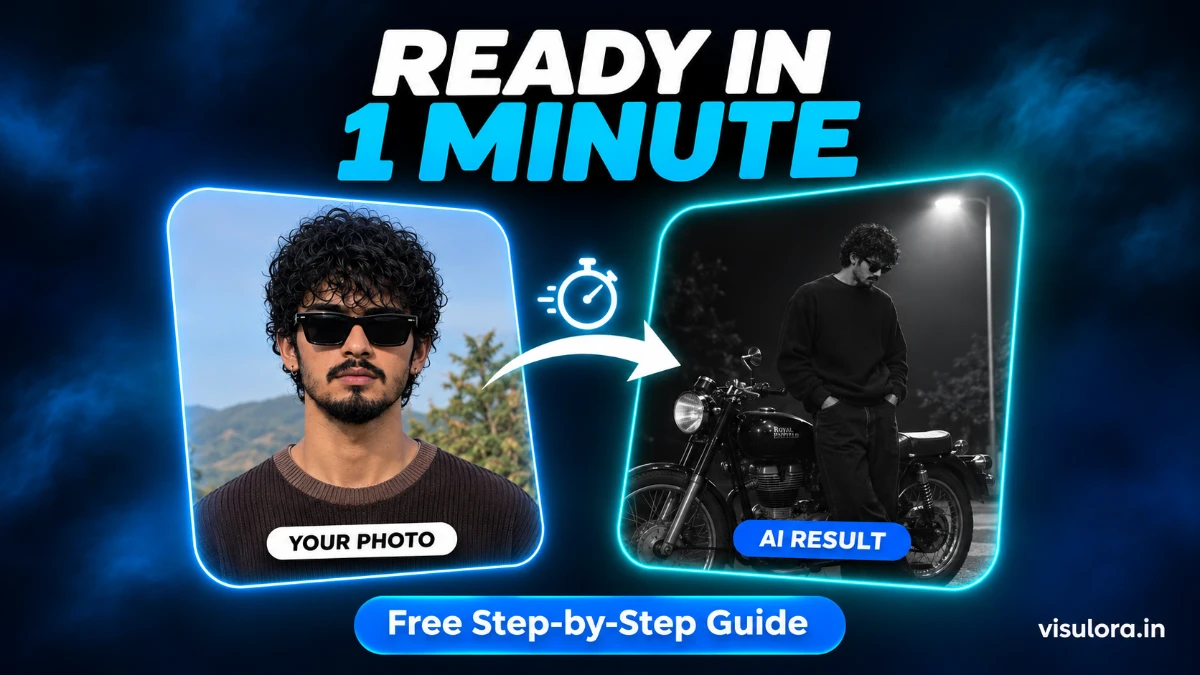
Last updated: 25 November 2026. Gemini changes its image features often; I'll update this guide when it does.
Every prompt on Visulora shows the image it made, so you can see the look before you try it. This guide shows how to use those prompts in Google Gemini with your own photo: where to find the image tool, how to keep your face, and how to fix the most common problems. It's free to start, on the Gemini app or on the web.
What you need
A Google account and the Gemini app (or gemini.google.com in a browser).
One clear photo of yourself. Facing the camera, in daylight, face fully visible, with no sunglasses, cap or hand on the face.
A prompt from Visulora. Start from the Explore grid, a category like Portrait, or a collection such as Navratri & Garba AI Photo Prompts.
Step 1: Copy a prompt
Open a prompt page and tap Copy Prompt to copy the full prompt. Keep the whole text: the lighting and camera lines at the end make the look.
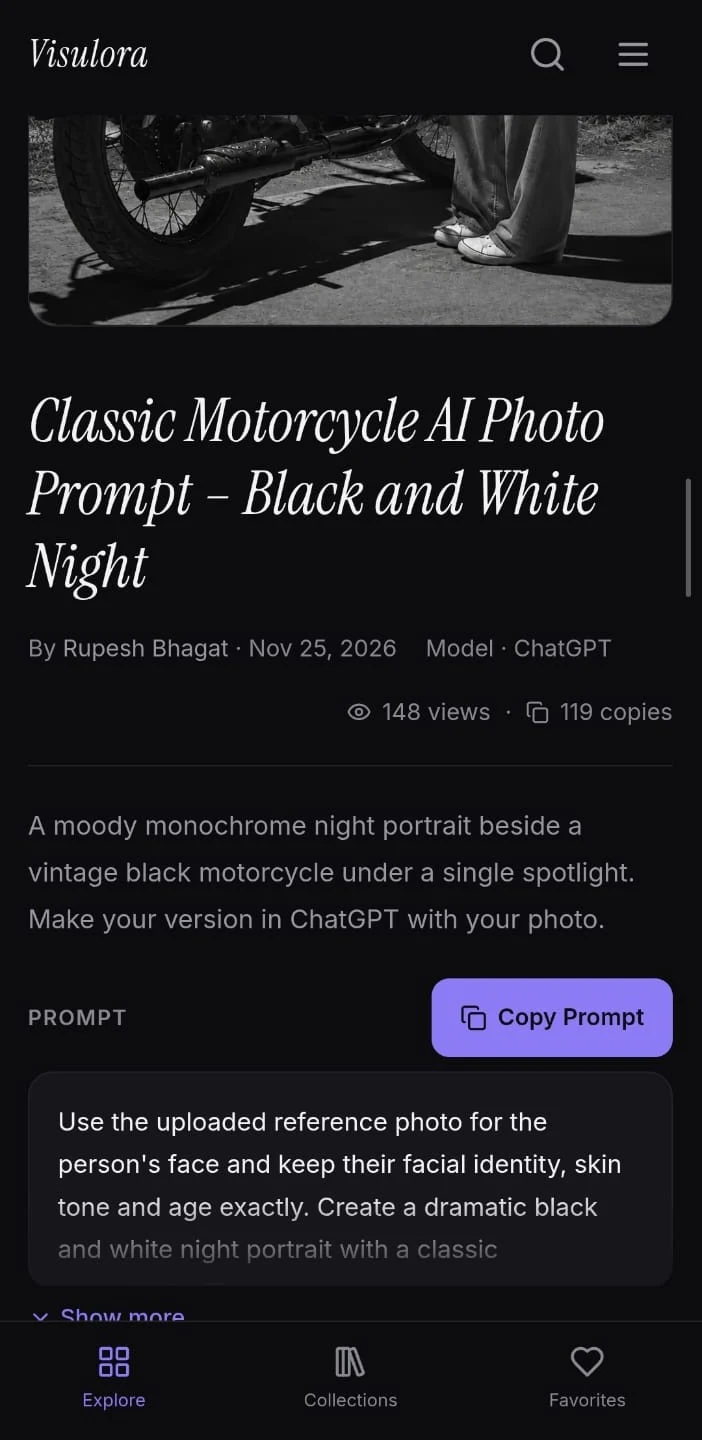
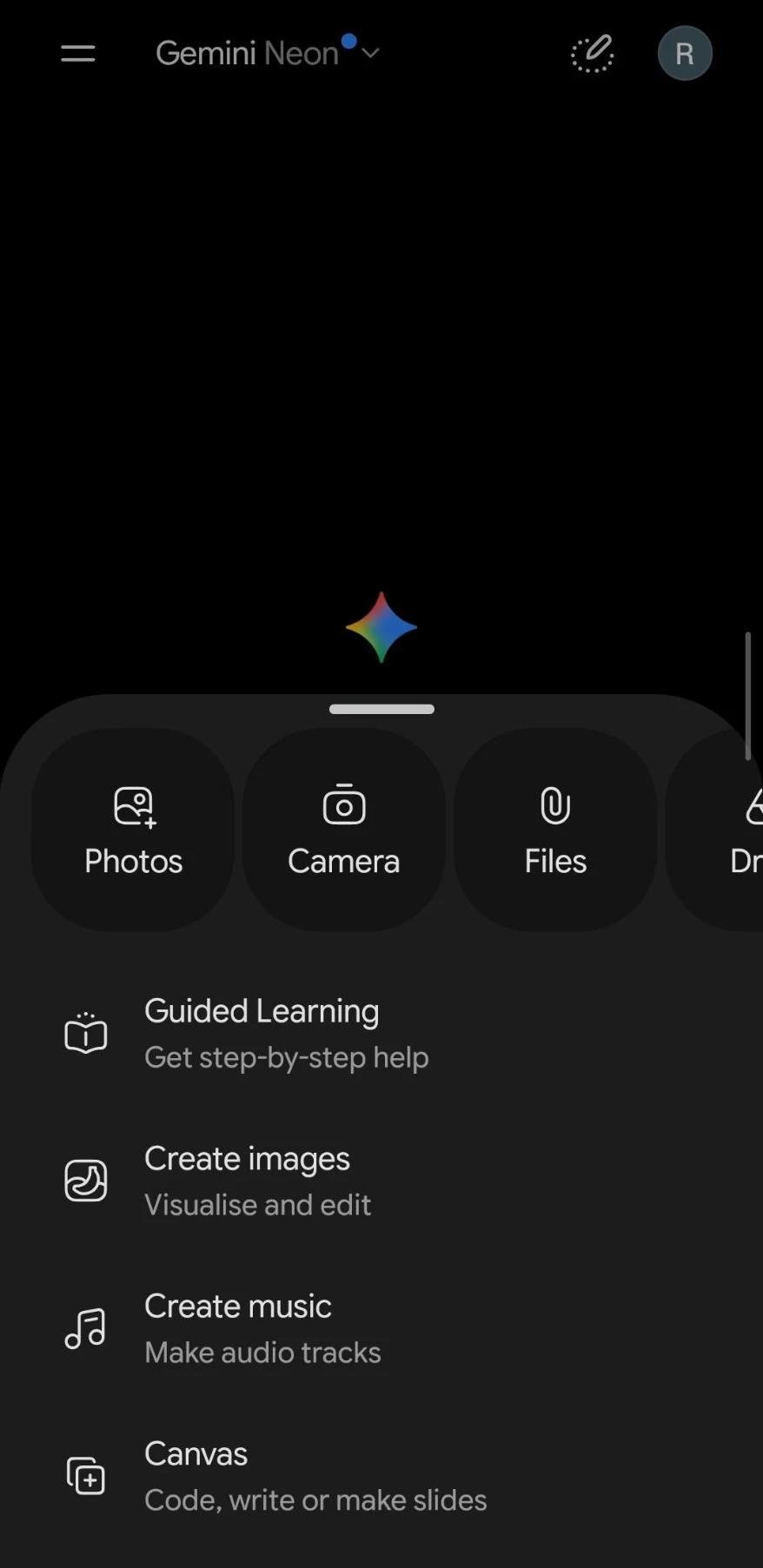
Step 2: Open Gemini's image tool and add your photo
In the Gemini app, tap + next to the message box. The menu shows Photos, Camera and Files at the top and a list of tools below. Tap Create images ("Visualise and edit"; Google's image model, often called Nano Banana), then tap + again and choose Photos to add your picture. Wait until it has finished uploading.
Step 3: Paste the prompt
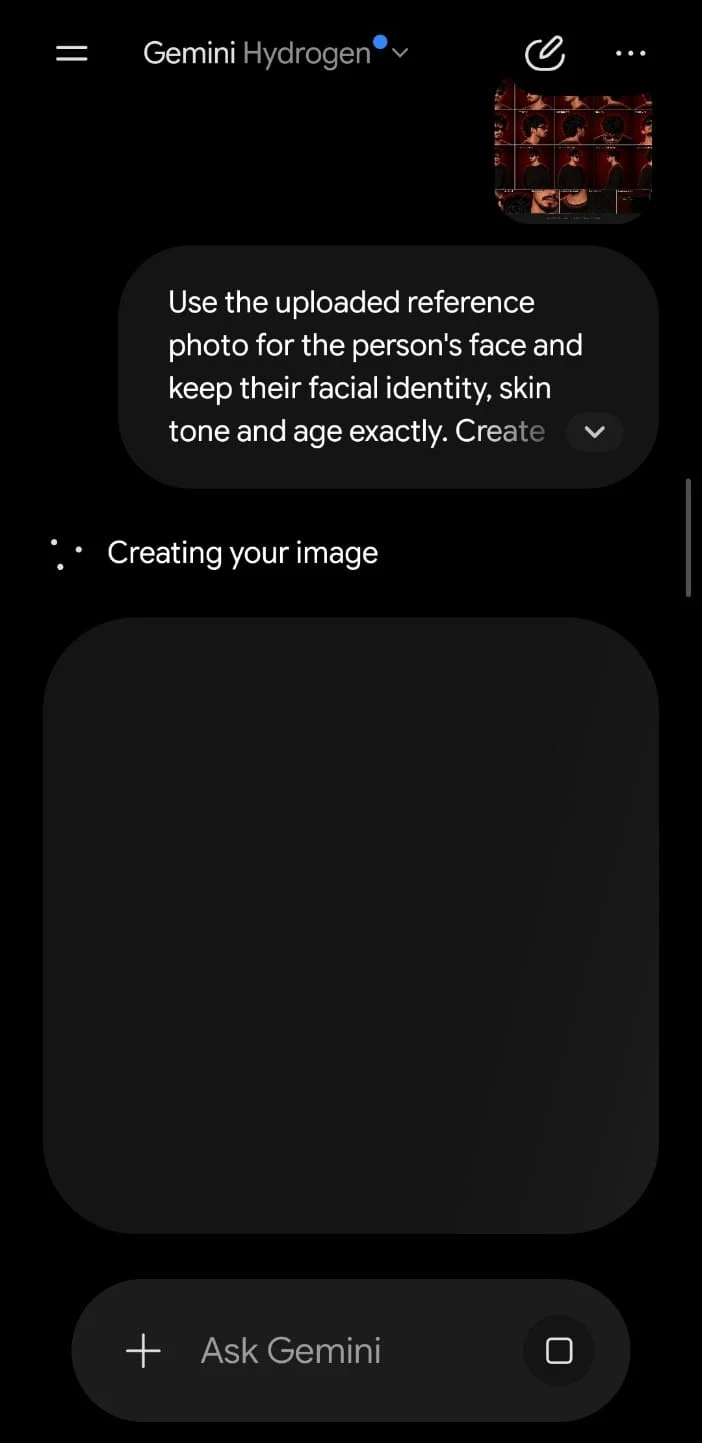
Long-press the message box and tap Paste. Most Visulora prompts already start with a face line such as "Use the uploaded reference photo for the person's face and keep their facial identity, skin tone and age exactly." If yours doesn't, add this at the end:
Use the person in the uploaded photo and keep their face exactly as it is.
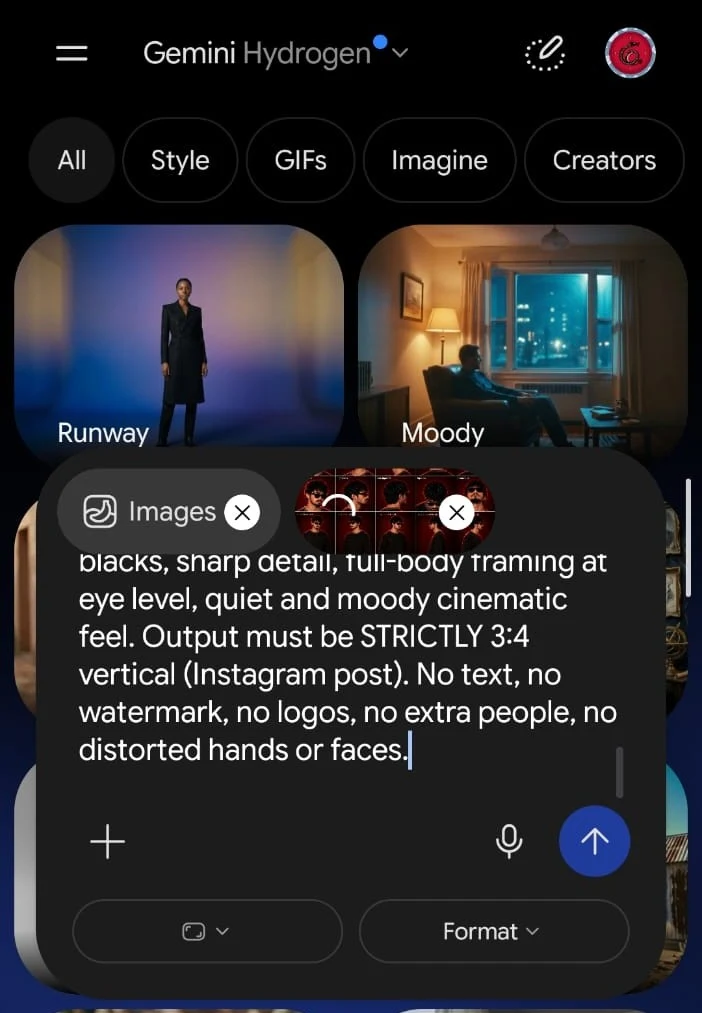
Step 4: Pick the size, then send
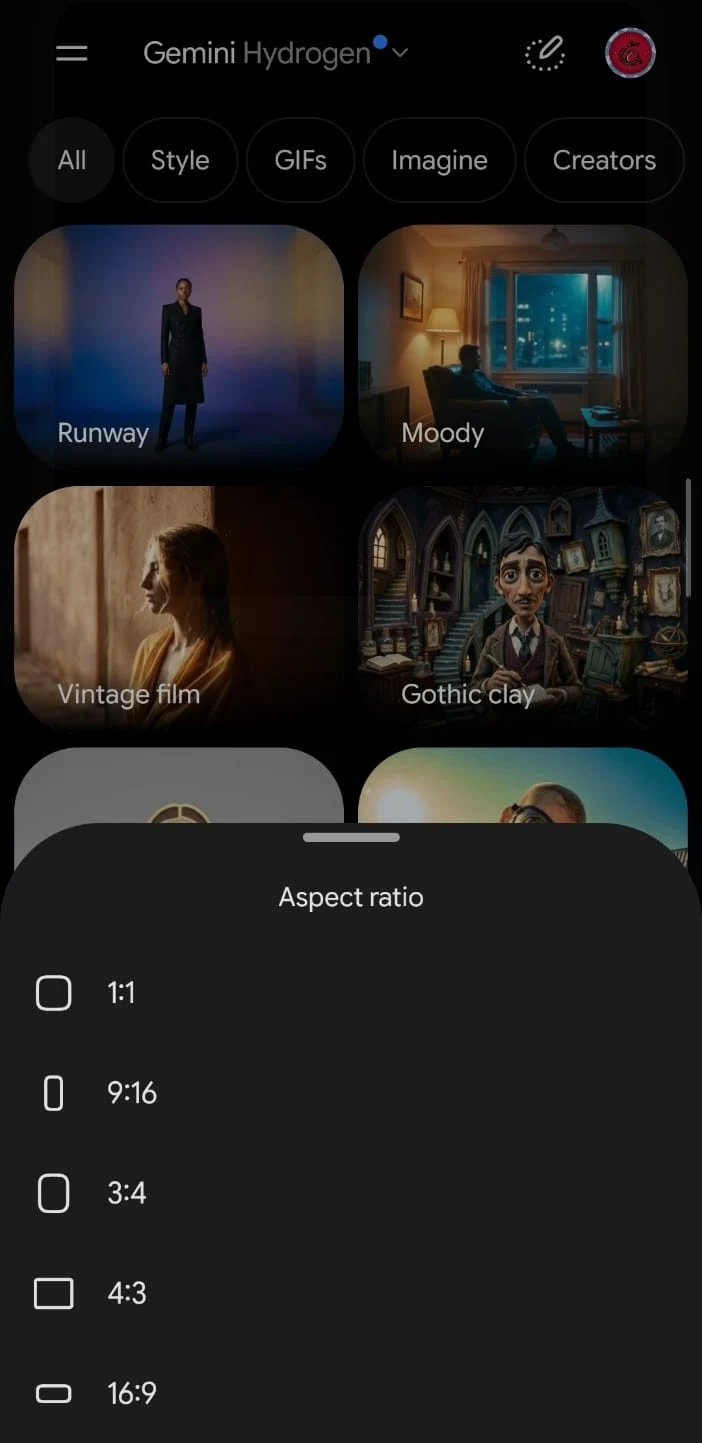
Under the message box you'll see two buttons: a shape button and Format. Tap the shape button and choose 3:4 for the Instagram feed, or 9:16 for a story, reel cover or wallpaper. Leave Format on Image.
Now send it. Gemini shows "Creating your image"; in my test the image was ready in about a minute.
Step 5: Save it, or fix what's not right
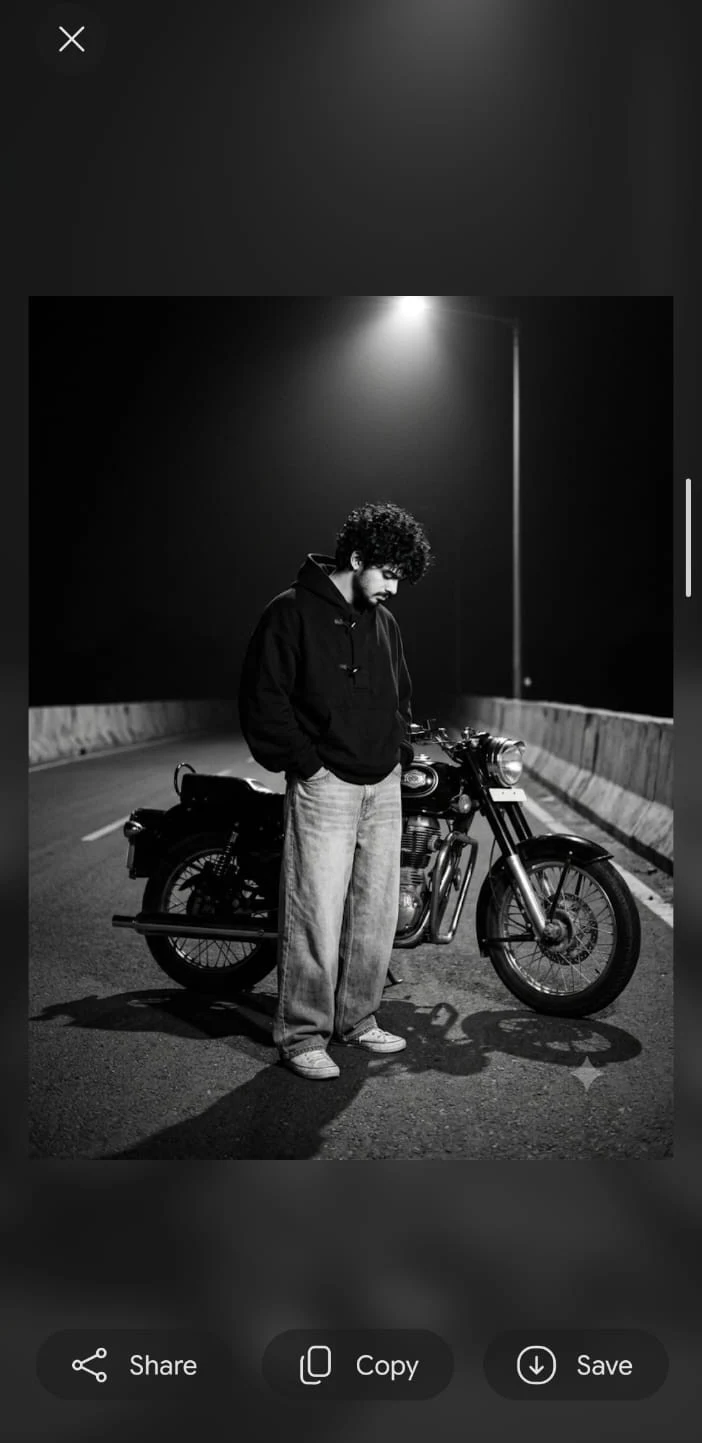
Tap the image to open it full screen, then tap Save to keep it on your phone, or Share to send it straight to Instagram or WhatsApp. Under the image in the chat, the circular arrow makes a new version of the same prompt.
To change something, ask for one change at a time in the same chat:
The face doesn't look like you. "Keep my face exactly as in the uploaded photo." If it still drifts, start a new chat with a sharper, front-facing photo.
Skin looks too smooth. "Make the skin natural, with visible texture."
Poster text is wrong. Shorten the text, use capitals, or put the exact words in quotes.
Two people. Upload one photo of each person and say who is who. The Romantic Couple AI Photo Prompts are written for two photos.
Wrong outfit or background. Change only that part: "Keep everything the same, but change the background to a beach at sunset."
Free vs paid
Free: you can create and edit images within an allowance that refreshes over time; Google doesn't publish a fixed number. Images download at a standard resolution.
Paid plans (Google AI Pro and Google AI Ultra): a larger allowance, access to the more advanced image model, and higher-resolution downloads. The prompts and steps stay the same.
Every image you create is saved under Images in Gemini's side menu, so you can find it again later.
ChatGPT or Gemini?
Both work with every Visulora prompt, and the steps are almost the same. In my test with the same prompt (Classic Motorcycle AI Photo Prompt – Black and White Night) and the same photo, Gemini was ready in about a minute and ChatGPT took about four, and each made a different scene: Gemini put the bike on an empty road under a streetlight, ChatGPT against a concrete wall under a spotlight. Try the same prompt and photo in both and keep the result you like better; if one tool doesn't get your face right, the other often will. The ChatGPT steps are in How to Use AI Photo Prompts in ChatGPT.
FAQ
Is Gemini free for this?
Yes, the image tool is free to use within an allowance; Gemini tells you when you've reached it.
I got Google AI Pro through Jio. Does it work the same?
Yes. The image tool and these steps are the same; the only difference is that you manage or upgrade the plan through Jio, not in the Gemini app.
What is the small sparkle in the corner?
Gemini adds a small sparkle mark in the bottom-right corner of the images it makes. It appeared in my test on a Google AI Pro plan too, so expect it on any plan.
Can I make couple or festival photos?
Yes. For couples, upload one photo of each person. For festival looks, start from Diwali AI Photo Prompts 2026 or Ganesh Chaturthi AI Photo Prompts 2026.
Can I use someone else's photo?
Only with their permission. Don't create images of real people without their consent.
Where to start
Try one look now: Portrait, Cinematic & Creative or Love & Family. New prompts go up on Instagram first at @visulora.