How to Use AI Photo Prompts in ChatGPT With Your Photo
Turn any Visulora prompt into your own AI photo in ChatGPT: upload one photo, paste the prompt, keep your face, and fix the five most common problems.
By Rupesh Bhagat ·
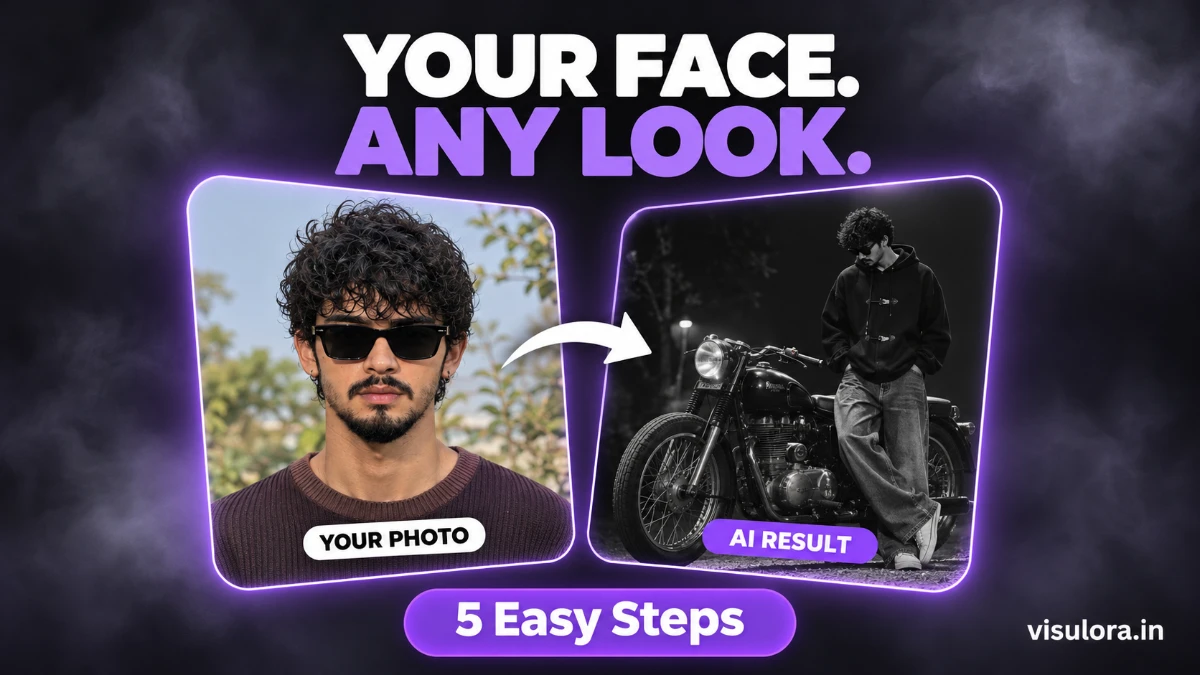
Last updated: 25 November 2026. ChatGPT changes its image features often; I'll update this guide when it does.
Every prompt on Visulora comes with the image it made, so you know what you're aiming for before you start. This guide shows exactly how I turn one of those prompts into a photo of you in ChatGPT: which photo to upload, where to paste the prompt, the one line that keeps your face, and how to fix the results that go wrong. It works on the free plan and on paid plans, on your phone or a computer.
What you need
A ChatGPT account. The free plan can create and edit images, within a daily limit.
One clear photo of yourself. Facing the camera, in daylight, face fully visible: no sunglasses, cap or hand on the face. A sharp phone photo is enough.
A prompt from Visulora. Browse the Explore grid or a category such as Portrait or Love & Family, or start from a curated collection like Diwali AI Photo Prompts 2026.
Step 1: Pick a prompt and copy it
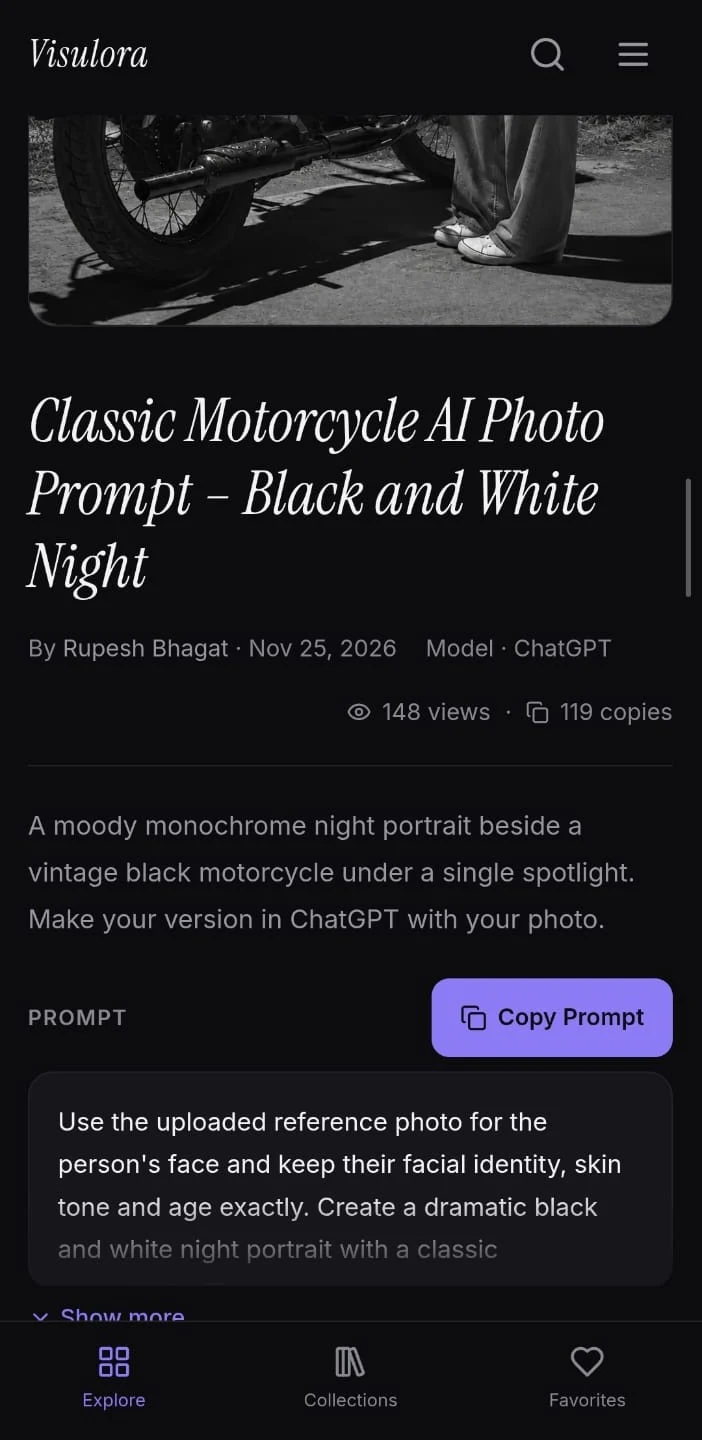
Open any prompt page. You'll see the image first, then the full prompt. Tap Copy Prompt to copy the whole prompt in one go. Don't retype it or copy only part of it: the lighting, lens and framing lines at the end are what give the image its look.
Step 2: Start a new chat and upload your photo
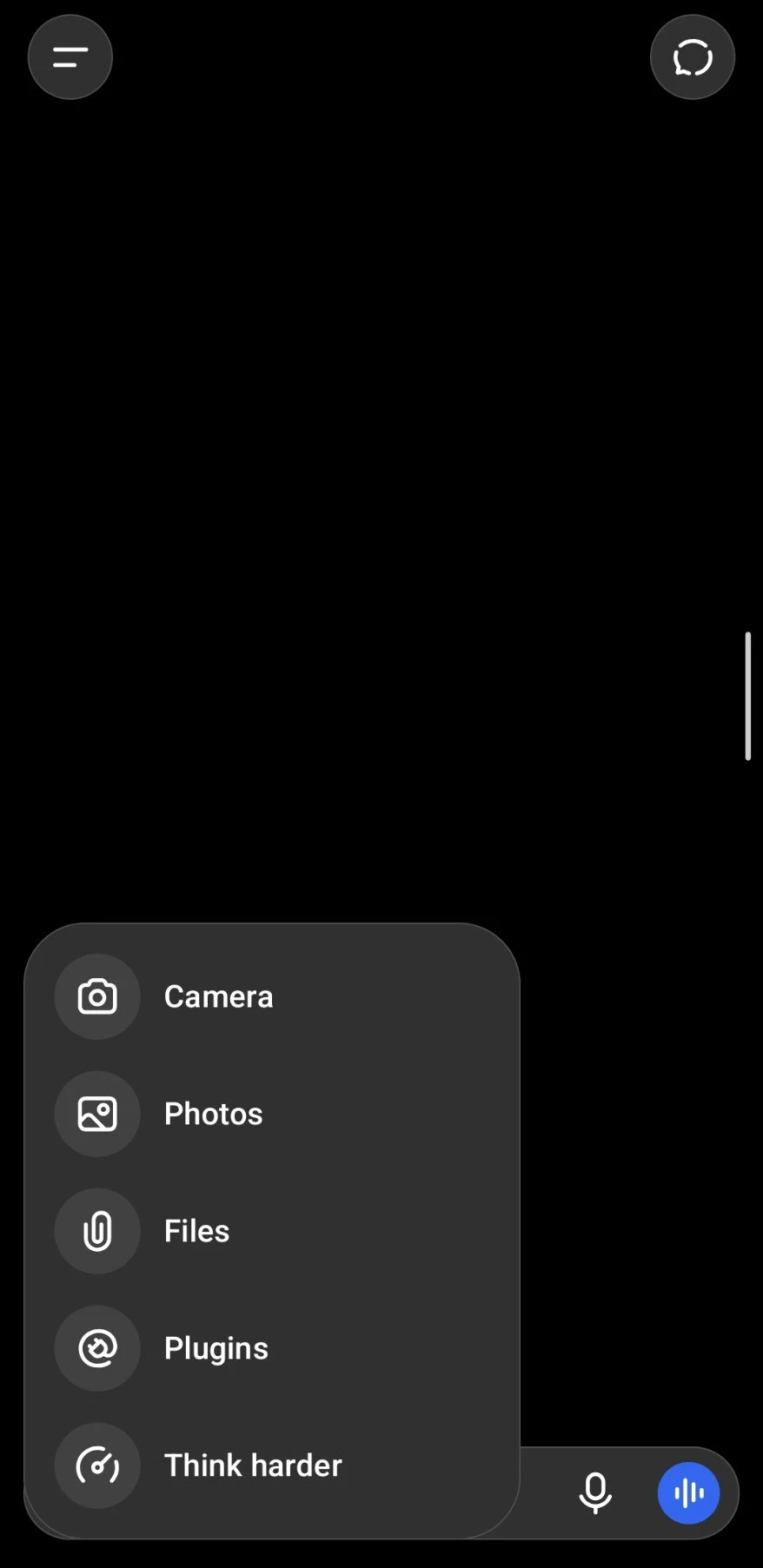
Open ChatGPT and start a new chat, so nothing from an earlier conversation changes the result. Tap the + next to the message box and choose Photos (or Camera to take one now). Wait until the photo has finished uploading before you send anything.
You may also see a Create an image or sticker shortcut on the home screen. You don't need it: a message with your photo and a prompt that describes an image is enough.
Step 3: Paste the prompt
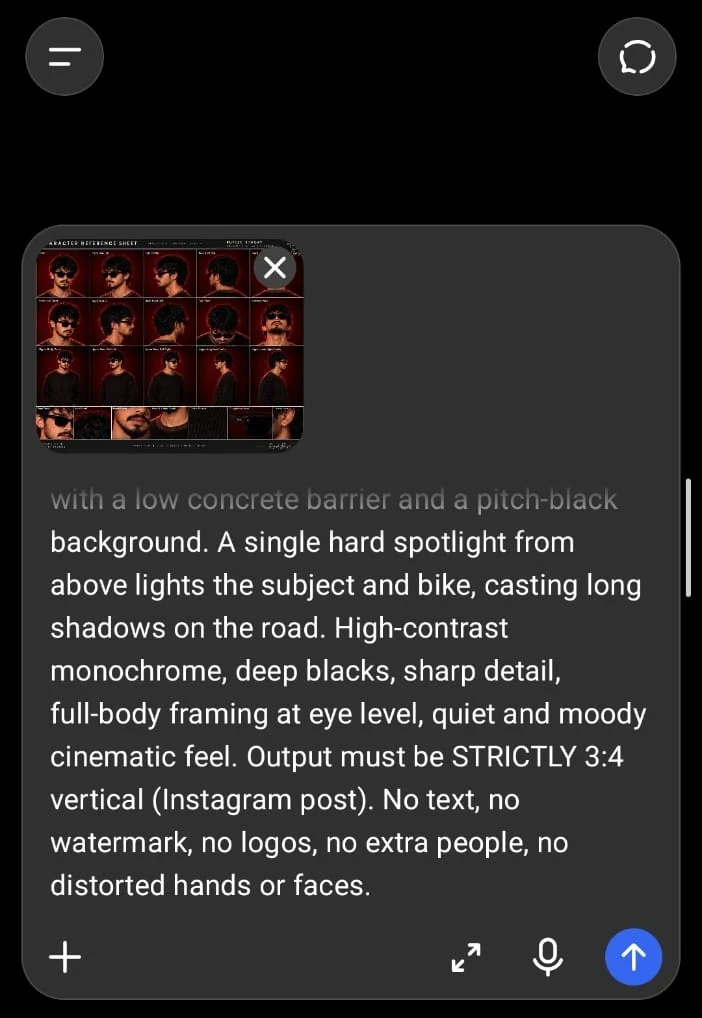
Paste the prompt into the message box under your photo (on a phone, long-press the message box and tap Paste). Most Visulora prompts already start with a face line such as "Use the uploaded reference photo for the person's face and keep their facial identity, skin tone and age exactly." If yours doesn't, add this at the end:
Use the person in the uploaded photo and keep their face exactly as it is.
Send it and wait. ChatGPT shows "Sketching it out" with a percentage while it works; in my test the image took about four minutes. You can leave the app and come back.
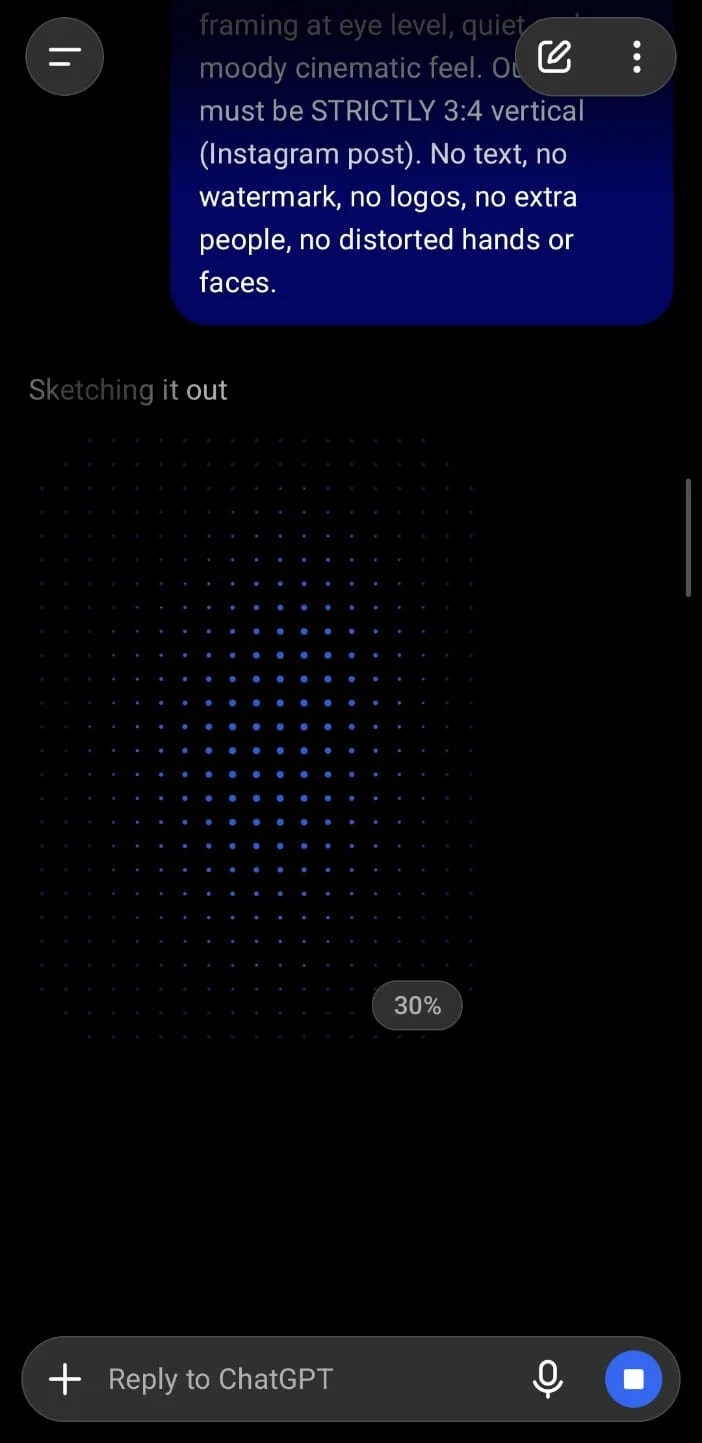
Pro tip: in the example above I used the Classic Motorcycle AI Photo Prompt – Black and White Night and uploaded a character reference sheet instead of a single selfie: one image showing my face from several angles. It gives ChatGPT more to work from, and the face in the result matched closely. A single clear front-facing photo works too.
Step 4: Check the size
Most Visulora prompts ask for a 3:4 vertical image, which fits the Instagram feed. For a story, reel cover or phone wallpaper, change "3:4" to 9:16 in the prompt before you send it. If a prompt doesn't mention a size and you need one, add "vertical 3:4 format" at the end.
Step 5: Save it, or fix what's not right
Tap the image to open it full screen. The download arrow saves it to your phone, and Share sends it straight to Instagram or WhatsApp.
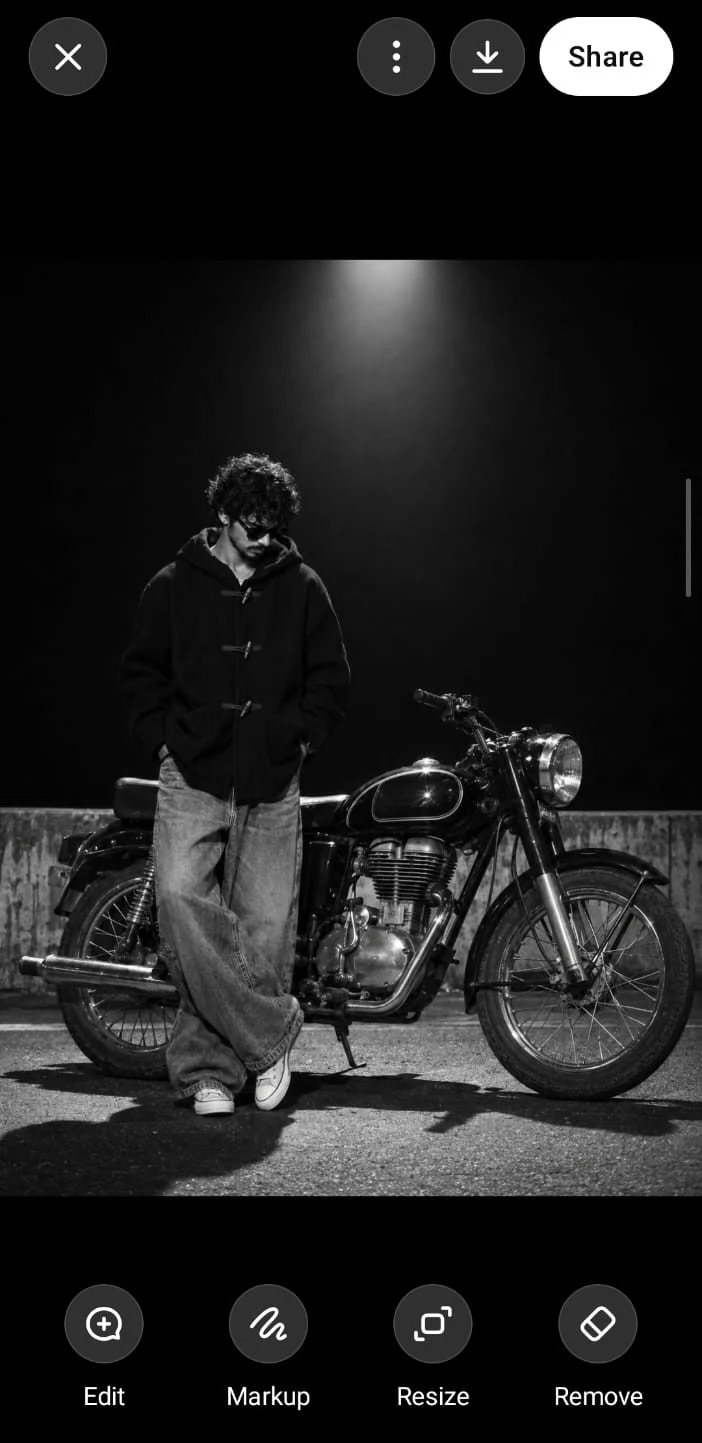
If something isn't right, tap Edit on that screen or reply in the same chat. Ask for one change at a time, in plain words. These five fixes solve most problems:
The face doesn't look like you. Reply: "Keep my face exactly as in the uploaded photo; don't change my eyes, nose or jawline." If it still drifts, start a new chat with a sharper, front-facing photo.
Skin looks plastic or too smooth. Reply: "Make the skin look natural, with visible texture and pores."
The text on a poster is misspelled. Shorten the text, write it in capitals, or put it in quotes: "The name must read exactly: RAHUL".
Two people, and one face is wrong. Upload one photo of each person and say who is who: "the man from the first photo and the woman from the second photo". The Romantic Couple AI Photo Prompts are written for this.
The background or outfit isn't what you wanted. Change only that part: "Keep everything the same, but make the saree red."
Free vs paid
Free plan: you can create and edit images, but only a limited number per day. Edits count towards the same limit. When you reach it, ChatGPT tells you when you can create again.
ChatGPT Go (₹399 a month in India): more image creation than the free plan. This plan shows ads.
ChatGPT Plus (₹1,999 a month in India): higher-quality image creation and no ads.
Prices are as shown on ChatGPT's pricing page in November 2026, including GST; check chatgpt.com/pricing for today's prices. The prompts and the steps are the same on every plan. To see where you stand, open Settings → Usage and limits in the app, and find every image you've made under Images in the side menu.
Because the free limit is small, get the photo and the face line right before you send. A good first attempt saves more tries than any fix afterwards.
Tips that make the biggest difference
Use the same photo every time. It keeps your face consistent across different looks. More on this in The Portrait Prompt Formula.
Run the prompt as written first. Change things only after you've seen the original result, one change at a time.
Learn what each part of a prompt does. How to Write AI Image Prompts: A Beginner's Framework explains the six parts every Visulora prompt is built from.
FAQ
Is ChatGPT free for this?
Yes. The free plan can create images from a photo and a prompt, within a daily limit that ChatGPT shows when you reach it.
Can I use these prompts in Gemini instead?
Yes. The same prompts work in Gemini's image tool; the steps are slightly different. See How to Use AI Photo Prompts in Gemini.
Why does my face change between tries?
AI image tools don't make the same image twice. A sharp, front-facing photo plus the face line keeps the change small; reusing the same photo keeps it consistent.
Can I make a couple or family photo?
Yes. Upload one photo of each person and name who is who. Start from the Romantic Couple AI Photo Prompts.
Can I use someone else's photo?
Only with their permission. Don't create images of real people, including celebrities, without their consent.
Where to start
Pick one look and try it now: Portrait for a cinematic profile picture, Nature & Travel for outdoor shots, or Religious & Mythology for festival and devotional art. New prompts go up on Instagram first at @visulora.