Luxury Mafia Viral Trend: Instagram New Trend Video Prompt
Make the viral Luxury Mafia reel with your face in Google Flow: free reference video, the one-line prompt I used, a character sheet prompt and exact settings.
By Rupesh Bhagat · · Updated
Last updated: 25 November 2026. Google Flow changes its models, modes and credit costs often, so I'll update this guide when they change.
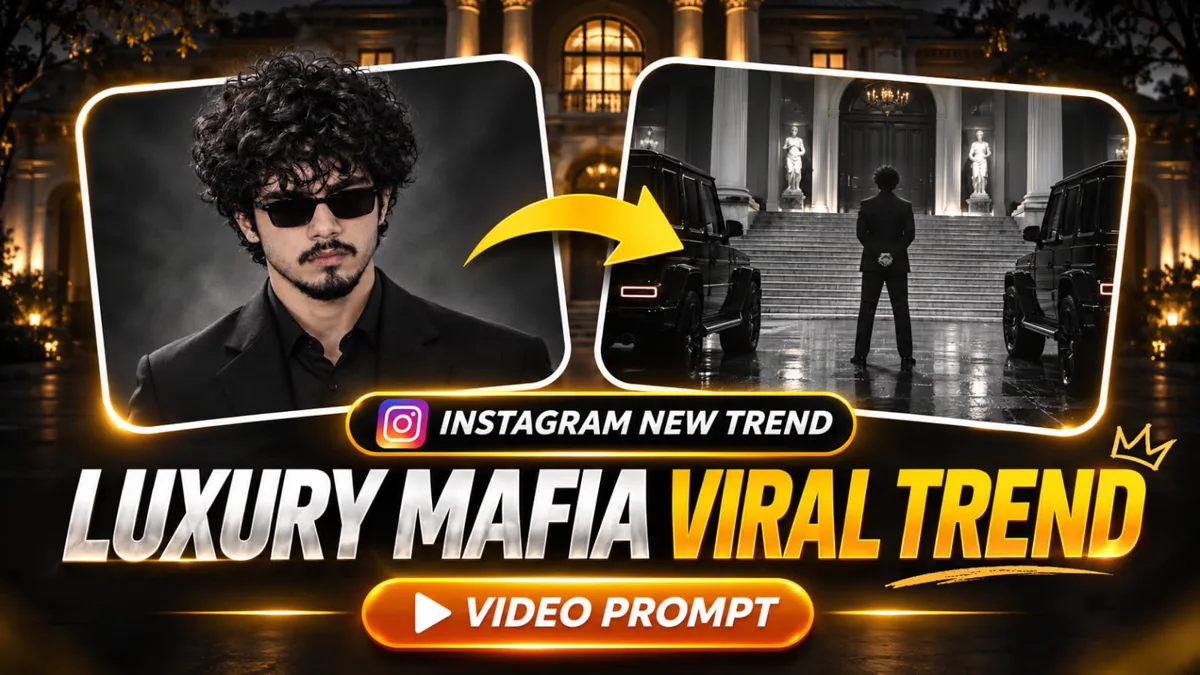
The Luxury Mafia trend is the dark, slow-motion reel everyone is posting right now. It opens on polished black shoes walking across stone, cuts to a silver watch on the wrist, then to the back of a man in a black suit facing a lit-up mansion at night. He turns, sunglasses on, with a cold look, and the last shot is a wide black-and-white frame: the man standing alone at the foot of grand palace steps, a black SUV parked on each side.
No suit, no SUVs and no mansion needed. I made my version in Google Flow with a character sheet of myself, a ready-made reference video and a one-line prompt. It cost 48 credits. Below are the exact steps, the prompts, the settings and the fixes for the problems you're most likely to hit. You can watch and download my result right here and use it as your reference video.
My finished reel, with music added, is on Instagram: watch the reel on @bhagat_edits.
What is the Luxury Mafia trend?
It's a short, moody "boss" edit, about 14 seconds long, built from five slow shots:
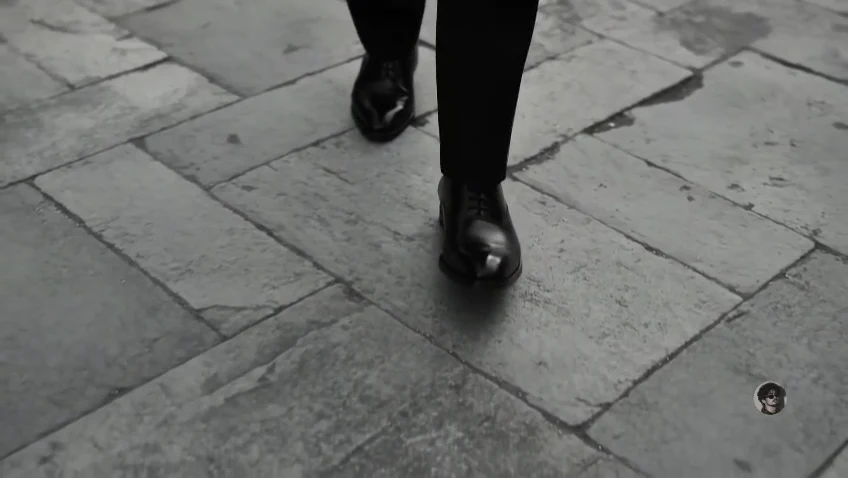
The walk: black leather shoes stepping across a stone courtyard.
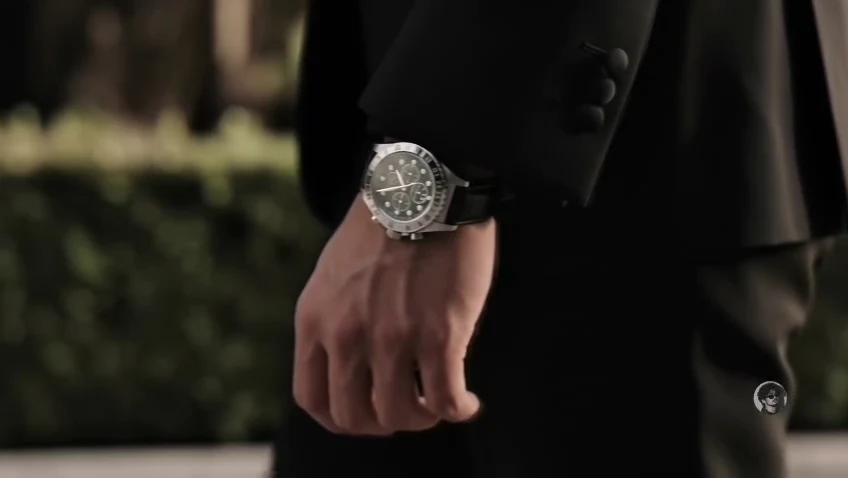
The watch: a close-up of a silver watch on the wrist, the black suit sleeve just above it.
The mansion: the man from behind, facing a grand mansion glowing with warm lights.
The turn: a close-up as he looks down in black sunglasses, curly hair, serious face.
The power shot: a wide black-and-white frame of him at the bottom of palace steps, with a black SUV on each side.
The scenes, the slow motion and the dark colour grade all come from the reference video. Flow only has to swap the person, which is why one short prompt is enough.
What you need for this trend
The reference video. Download my result from the top of this guide. It's 16:9, about 14 seconds long and muted.
One clear photo of yourself, wearing the outfit you want in the reel. An all-black look suits this trend best.
ChatGPT, to turn your photo into a character sheet.
A Google account. Flow runs on it, and new accounts get free credits.
Google Flow. Open it at labs.google/flow in your browser or use the Flow app. New to Flow? Read How to use Google Flow free for credits, settings and fixes.
Instagram, to add the audio at the end.
Step 1: Download the reference video
Scroll back up to the video at the top of this guide and tap Download video. Save it to your phone's gallery.
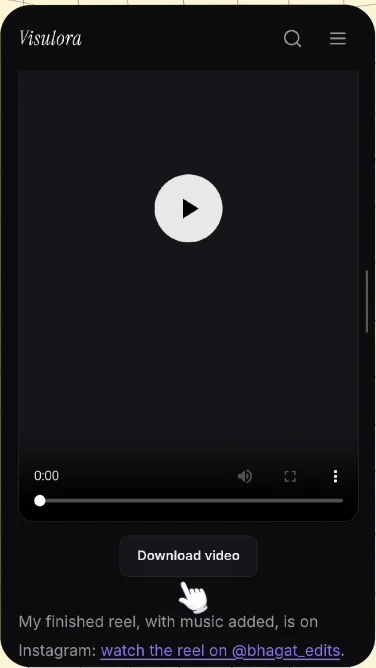
The video is muted on purpose. Flow often fails with videos that have sound. Using a different clip? Mute it in CapCut or VN first, and use any clip only as a reference for your own generation. Don't repost someone else's reel as your own.
Step 2: Make a character sheet in ChatGPT
This trend shows you from every side: your feet, your hand, the back of your head, a close-up and a tiny figure in the wide shot. A single photo only shows Flow one angle, so I used a character sheet: one image of me in a black shirt, black suit and sunglasses from four angles.
Open ChatGPT and switch to image mode (create image).
Upload one clear photo of yourself: facing the camera, in daylight, full face visible. Wear the outfit you want in the reel, like a black shirt and black suit.
Paste this prompt and generate:
Using the uploaded reference image, create a professional character reference sheet of the SAME person. Keep the face, facial structure, skin tone, age, hairstyle, hair color and outfit exactly identical to the reference — no beautification, no changes to identity.

LAYOUT (vertical 2:3 canvas, 4 panels separated by thin light-purple borders):
- LEFT COLUMN (full height, ~45% width): full-body front view, standing straight, feet slightly apart, arms relaxed behind the back, entire outfit and shoes visible head to toe.
- TOP RIGHT (large panel): tight front-facing headshot, framed from top of head to collarbone, looking straight into the camera, neutral serious expression.
- BOTTOM RIGHT, LEFT HALF: three-quarter view (head and shoulders), face turned ~45° to the side, eyes toward the camera.
- BOTTOM RIGHT, RIGHT HALF: full side profile (head and shoulders), facing right, 90° profile.

STYLE:
- Clean seamless studio backdrop in soft lavender / periwinkle (#B9B4F0) across all panels
- Even, soft studio lighting with gentle shadows, no harsh contrast
- Ultra-realistic photography, sharp focus, natural skin texture with pores and fine lines
- Consistent lighting, color grading and outfit details across every panel
- Shot on 85mm lens, high resolution, catalog / casting-sheet aesthetic

NEGATIVE: no text, no labels, no watermark, no extra people, no distorted hands, no change in face between panels, no different clothing between panels.
Check the result before you download it. The face should look like you in all four panels, and the outfit should be the same everywhere. If the face drifts in one panel, generate again.
Tip: keep your sunglasses on in the sheet if you want them in the close-up. Flow copies them as they are.
Step 3: Copy the prompt
This is the exact prompt I used. It's short on purpose: the video already holds every scene, so the prompt only has to say what to change.
replace the man with this reference image don't change the scene
For girls: change "the man" to "the woman".
Prefer a more detailed prompt? This English version says the same thing and adds a few guardrails. Try it if the short one changes your hair or the scenes:
Use the reference video for everything: every shot, the slow motion, the camera angles, the timing, the dark moody colour grade, the stone courtyard, the lit mansion at night, the palace steps and the two black SUVs, and the black-and-white final shot. Replace only the man with the person in my reference image. Keep their face, hairstyle, hair texture, sunglasses and black outfit exactly as in my image in every shot, including the shot from behind and the wide shot. Do not add any text, titles, captions or logos.
Step 4: Upload the video and your character sheet
Open Google Flow and sign in.
Tap + and add the reference video first.
Tap + again and choose Images (or Library, if you've used the sheet before). Add your character sheet.
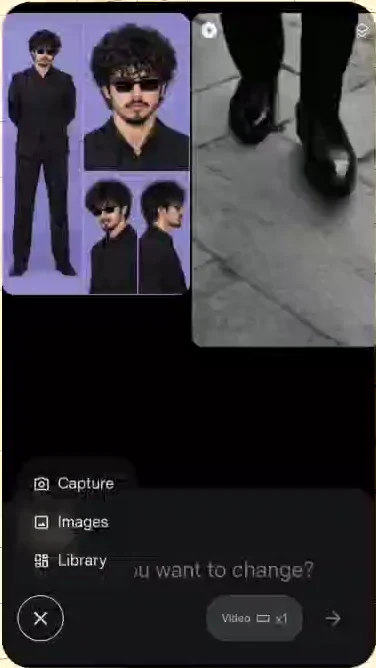
Check that both are attached to the prompt box. You should see two small thumbnails above it, the video and the sheet, and the box says "What do you want to change?". If your sheet isn't attached, Flow keeps the original man's face.
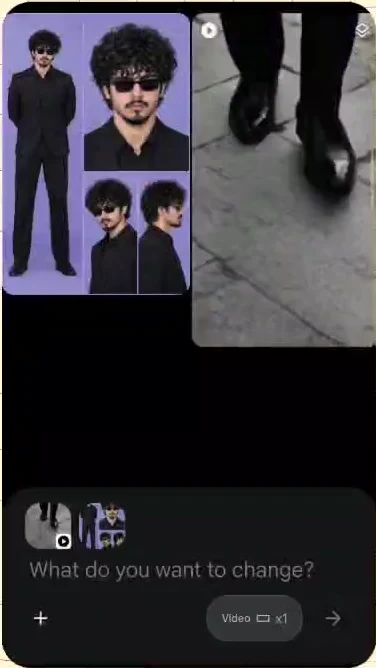
Step 5: Paste the prompt, set it up and generate
Paste the prompt into the box, then open the settings and set:
Aspect ratio: 16:9 (horizontal, like the reference video)
Quality: 720p
Outputs: x1
Model: Omni 1.2 Flash
With these settings Flow showed "Generating will use 48 AI credits". Check the number Flow shows before you tap generate, because costs change.
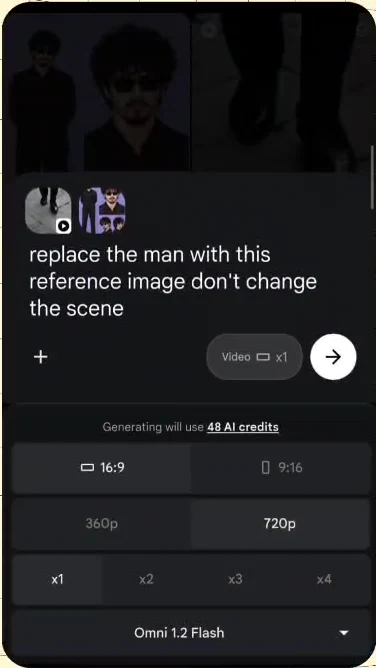
Tap the arrow and wait. Don't close the app while it runs.
Step 6: Check the result
When it's ready, watch the whole clip before you download it. Check three things:
The face: is it you in the close-up with the sunglasses?
The hair: does it match your sheet in the shot from behind, too?
The scenes: are the walk, the watch, the mansion and the palace steps with both SUVs all there?
Here's what my result looked like:
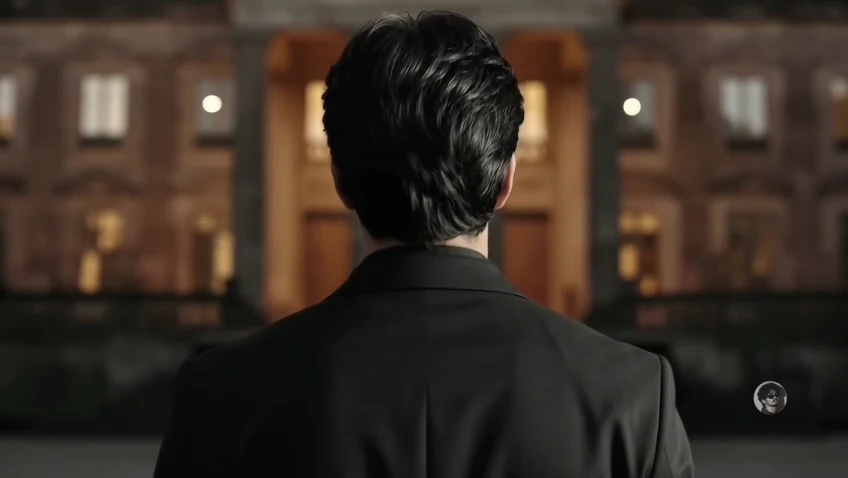
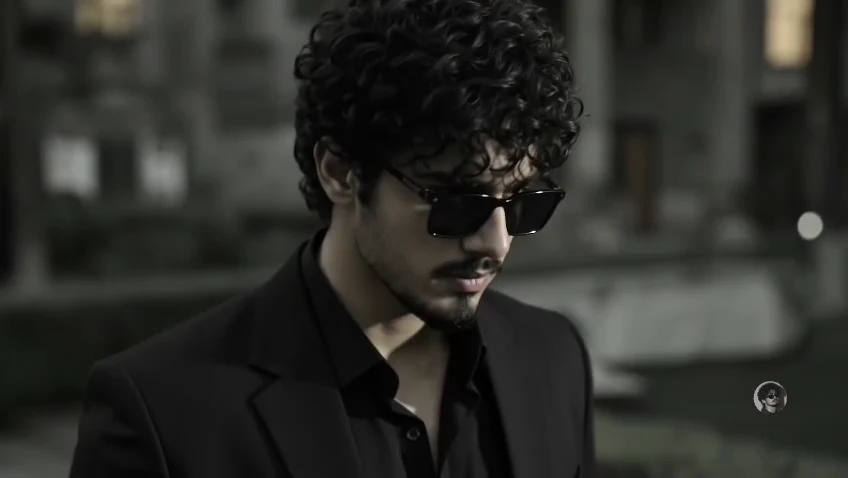
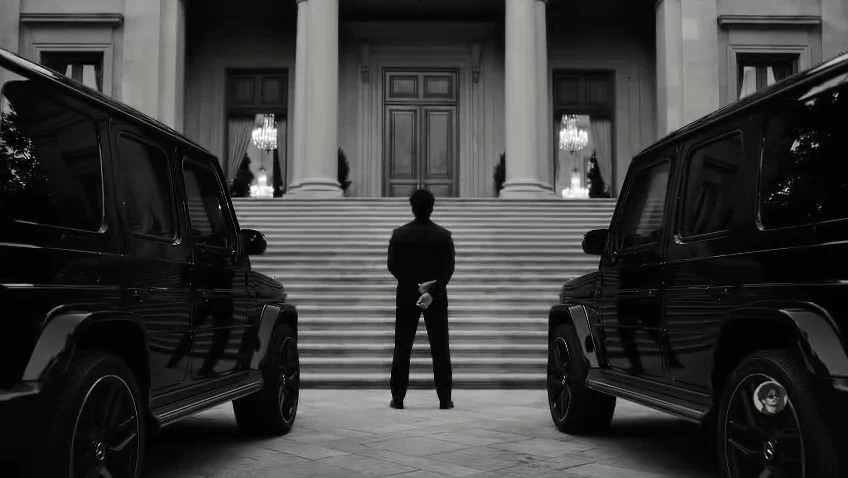
What went wrong in my version: in the shot from behind, my hair came out straighter than my real curls, because that shot never shows the face. If that bothers you, use the detailed prompt, which asks Flow to keep the hair texture in every shot, and generate again. Flow gives a slightly different result every time.
Step 7: Add the audio and post
Download your video from Flow.
Open Instagram, tap +, choose Reel and select your video.
Tap the music icon and search for the trending audio, or open any Luxury Mafia reel, tap the audio name and choose Use audio.
Line up the close-up turn with the beat drop, add a caption and post.
Adding the audio inside Instagram keeps it licensed. If you add a song in an editing app and upload the file, Instagram may mute your reel.
Vertical or horizontal? The reference is 16:9, so your video comes out horizontal. Instagram shows it with bars above and below, which suits this cinematic trend. If you want it full-screen, place it in a 9:16 frame in CapCut or VN and zoom in slightly.
Common problems and fixes
The face isn't you. Your sheet wasn't attached, or it was blurry. Fix: check that both thumbnails sit above the prompt box before you generate, and use a sharp sheet.
Your hair changes in the shot from behind. Fix: use the detailed prompt and make sure your sheet has a clear side profile.
The sunglasses come and go. Fix: wear them in every panel of your sheet, or take them off in every panel. Don't mix.
One SUV or the steps are missing in the last shot. Fix: generate again. The wide shot is the hardest one for Flow to copy exactly.
Flow shows an error when you upload the video. Fix: the clip probably has sound. Use the muted reference from this page, or mute your own clip first.
Flow shows an error with your image. Some images just don't work. Fix: make a new sheet from a different photo of yourself before you change anything else. That fixed it for me on the Jatayu edit.
Tips for a better reel
Go all black. A black shirt and black suit match the dark grade and make the final wide shot look powerful.
Wear a watch in your photo if you have one. The watch close-up looks more real when it matches your style.
Keep a straight face. This trend is about attitude, so a serious look in your photo works better than a smile.
Post while the audio is trending. Trends like this peak within a couple of weeks.
FAQ
Which app is used for the Luxury Mafia trend? Google Flow with the Omni 1.2 Flash model. You attach the reference video and your character sheet, paste a one-line prompt and generate.
How many credits does it cost? My 16:9, 720p video with one output cost 48 credits. New Flow accounts get free credits, so you can usually make it for free. Check the cost Flow shows before you generate.
Do I need a character sheet? It's not required, but it helps a lot here, because the reel shows you from behind and from far away. One clear photo can work for a simpler result.
How do I make the character sheet? Upload your photo in ChatGPT's image mode and paste the character sheet prompt from Step 2.
Can girls make this trend? Yes. In the prompt, change "the man" to "the woman".
Can I use someone else's photo? Only with their permission. Don't make videos of real people, including celebrities, without their consent.
Try these next
Liked this one? Make the Sher of Arabia trend with its funky "fa fa fa" text, or the Stone Castle trend, where you build a castle from the stones people throw at you. For another cinematic edit, try the Jatayu edit.
Want a still image in the same dark style for your thumbnail? Try the retro sunglasses portrait prompt or the cinematic black and white portrait prompt.
If you make your own Luxury Mafia reel, tag @bhagat_edits on Instagram. I'd love to see it.